




Spingranny App
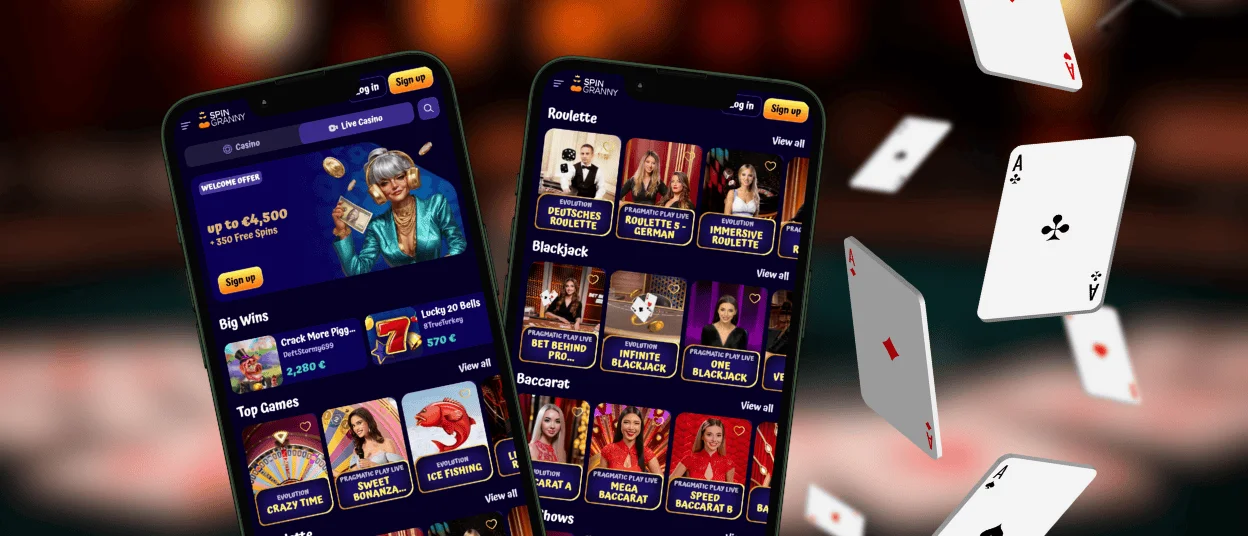
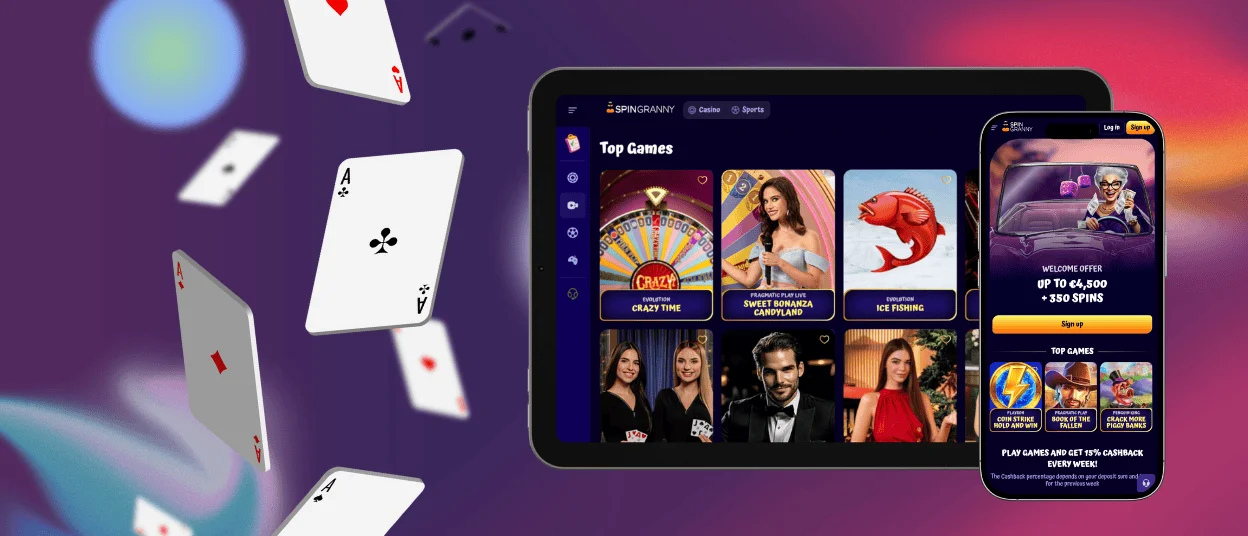
The way you access a casino often depends on the device you have at hand. With the Spingranny app, we keep that experience flexible through a progressive web app that works in the browser and can also be added to your device as a shortcut. Your account and casino experience stay consistent across supported devices.



Spingranny App Features and Benefits
A progressive web app gives regular players a more convenient way to return to our casino. After adding Spin Granny to a home screen or desktop, you can open it from an icon instead of searching for the website each time.
The main PWA features translate into practical benefits as follows:
| PWA Feature | Practical Benefit |
| Home screen or desktop shortcut | Opens Spingranny directly without searching for the website |
| No separate installation file | You do not need to download or manage an app package |
| Automatic updates | You access the current platform version without installing updates manually |
| Browser-based environment | The PWA has limited access to device-level resources |
| HTTPS connection | Helps protect data sent between your browser and the platform |
| Cross-device access | You can use Spingranny on both mobile devices and computers |
Using the PWA does not limit the casino experience. Once you open Spingranny, you can use the regular platform to:
- browse slots and live casino games;
- sign in and manage your account;
- check available promotions;
- access payment options;
- contact support when needed.
The current game catalog includes titles from providers such as Playson, BGaming, Endorphina, and Evolution. Players can find different types of casino content, including slots and live dealer games, without switching to a separate mobile-only product.
How to Install the Spingranny App
You can add Spin Granny to a supported device directly from the official website. The exact wording of browser menus may change between versions, but the setup itself requires only a few steps.
Add Spingranny to iPhone or iPad
Use Safari to add the casino to your iPhone or iPad home screen:
- Open the official website in Safari.
- Tap the “Share” button.
- Select “Add to Home Screen”.
- Tap “Add” to confirm.
The Spingranny icon will then appear on your home screen. You can move it to another position in the same way as other icons.
The shortcut stays there until you remove it, so you only need to complete the setup once.
Add Spin Granny to Android
Android users can create a shortcut through Chrome:
- Open Spingranny in Chrome.
- Tap the three-dot menu.
- Choose “Add to home screen”.
- Confirm the action.
- Move the icon to your preferred location if necessary.
Once the shortcut is in place, it remains available on your home screen and gives you a direct route back to the casino.
Use Spingranny on Mac or Windows
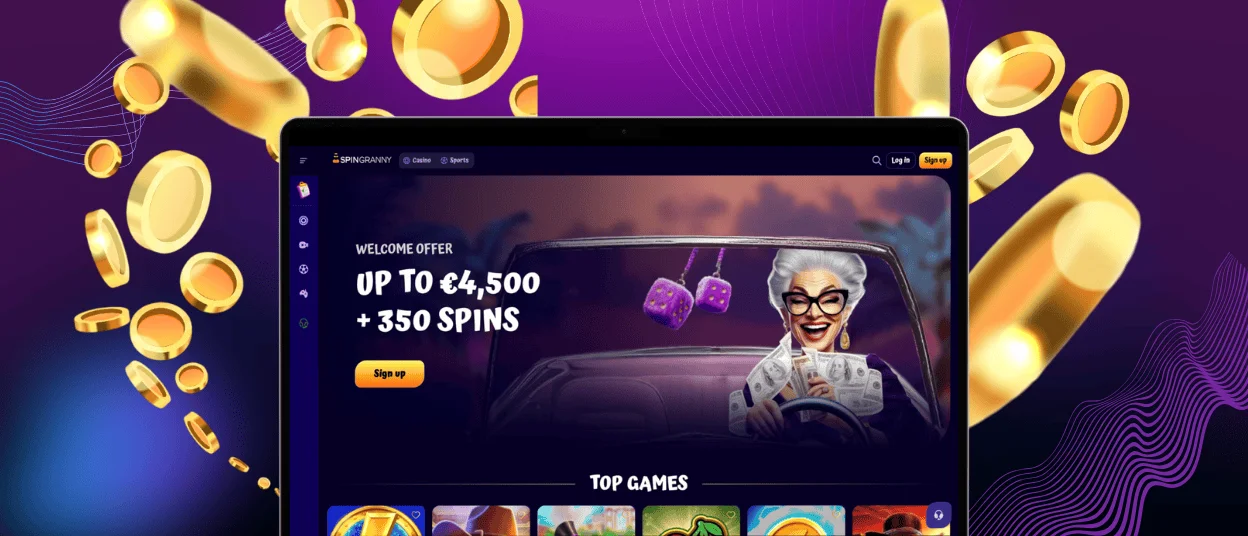
You can also create quick access to Spin Granny on a laptop or desktop computer. Depending on the browser, you may see an option to install the website as a PWA or create a standard desktop shortcut.
The menu and setup method vary by browser. In general, you can look for an installation or shortcut option in the browser menu and then choose where you want the icon to appear.
This can be useful if you prefer playing on a larger screen and regularly return to the casino from the same computer. Instead of opening a browser and searching for the website, you can start from the desktop icon.
Do You Need a Spingranny APK?
We do not distribute an APK for Android. If you see a Spingranny APK offered on a third-party website, it is not an official file from us. Android players should access our casino through our web app on the official site.
Is the Spingranny PWA Secure?
The Spingranny PWA runs through your browser, so its access to the device stays within browser permissions. For example, features such as the camera or local storage cannot simply be used without the permissions required by the browser.
Spingranny uses HTTPS, while SSL encryption protects data sent between your device and our platform. We also use network monitoring and regular system testing as part of our security setup.
The PWA always opens the current web version of Spin Granny Casino. This removes the problem of keeping an old app build on your device after a security update has been released.
Your own account habits matter as well. Use Spingranny through the official website, keep your browser updated, and contact our support team if you notice activity you do not recognize.
FAQ
Can I still use Spin Granny in a browser after adding it to my home screen?
Of course. The shortcut is simply another way to open Spingranny; browser access remains available as usual.
Why can’t I see the “Add to Home Screen” option?
The most common reason is the browser. On iPhone and iPad, open Spingranny in Safari; on Android, use Chrome. The wording of the option may differ slightly depending on the browser version.
What happens if I delete the shortcut?
Your casino account and its data stay exactly where they are. Deleting the icon only removes that access point from your device.
What should I do if the shortcut stops working?
Open Spingranny in the browser first. If the site loads normally, recreating the shortcut is usually enough.
Can I have the shortcut on more than one device?
Yes. A shortcut stays on the device where you create it. If you use Spingranny on another phone or computer, you can add a separate shortcut there too.


